Defining faults and NNCs
The Faults and Non-Neighbor Connections (NNCs) form is used to create or modify fault definitions in the simulation input. It is also used to synchronize fault definitions with the upstream workflow. If you created a Fault Seal Model or a Z2Z Multiplier Model with the Fault Seal strip (model > Fault Seal) you can assign it to your simulation case here.
Editing and connecting faults
- Click on the Faults and NNCs button to open the Faults and NNCs form.
- (Optional) Under Select fault transmissibility model (step 1) you can select a Z2Z Multiplier Model or Fault Seal Model. If you did not create such model, or do not want to use one, leave the selection to 'None'. For detailed information about using such model, see Option 1a and 1b in section Applying connection or fault transmissibility multipliers.
Important The cell center calculations have been improved as of JewelSuite Subsurface Modeling 2022.3. As part of transmissibility calculations, these improvements will be applied automatically to the 3D grid assigned to the simulation case, and the 3D grid cell center properties in the JewelExplorer are updated accordingly. Note that this improvement is only applicable for the cells cut by a discontinuity surface that is assigned to the fault model used in the simulation case.
For solutions saved in older versions, it is recommended to rerun the workflows or calculations in your solution which use the cell center locations. - Click the Connect faults button to find the cell connections and calculate the cell to cell transmissibilities taking your selected model (previous step) into account. If you selected a Fault Seal Model or a Z2Z Multiplier Model in the previous step, make sure to click 'Connect faults' each time you have updated this model. Upon clicking 'Connect faults', all the properties related to the simulation case are generated in a dedicated folder in the JewelExplorer under 3D Grids > Grid Name > Properties > Simulation Case Name (see image below).
- Click the Edit faults button to open the Faults and NNCs view for the active simulation case. This will allow you to review and edit fault information for the 3D grid. Optionally, you can Enable fault threshold pressure, using the adjacent checkbox, which is used to calculate the cross-fault fluid flow typically during history matching. The fluid flow across the fault is calculated based on the pressure difference reduced due to the threshold pressure value. If the pressure difference in the grid cells across the fault is less than the threshold pressure value then there will be no flow. On the Faults and NNCs view, a third column is added to the 'Master table' that lists the associated faults, where you enter the threshold pressure values per fault.
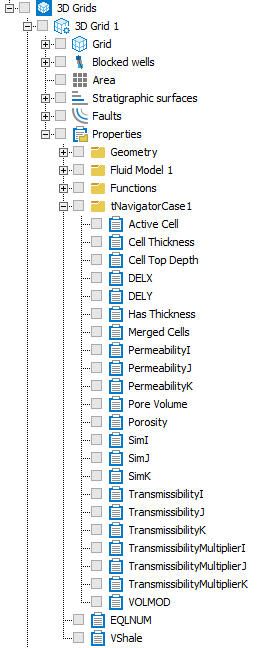
All properties related to the tNavigator simulation case are created in a separate folder under the 3D Grid. click to enlarge